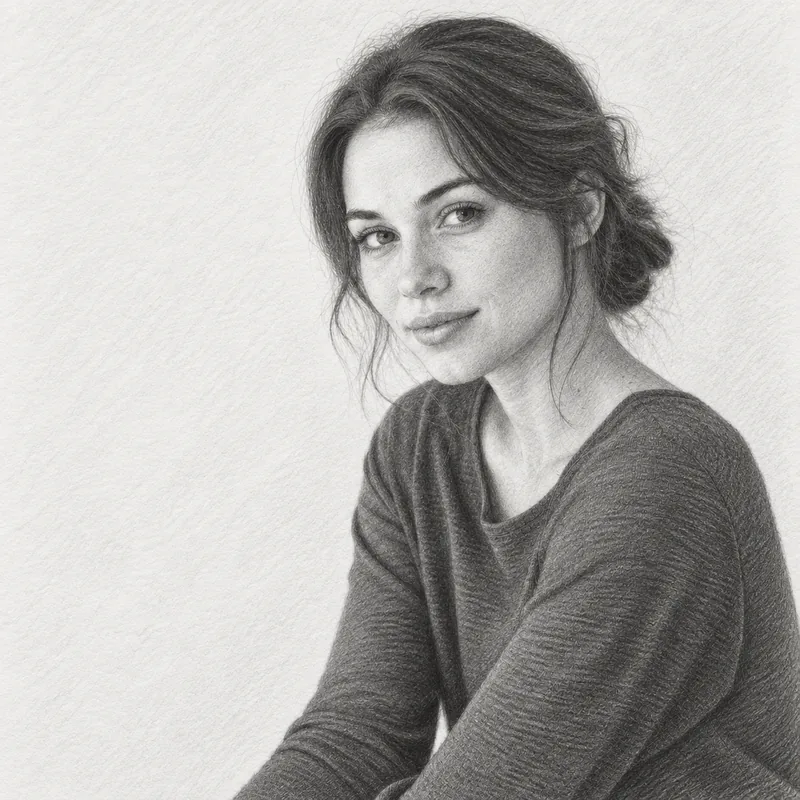
A picture to drawing tool converts an uploaded photo into a drawing-style image. It can help you create pencil sketches, line drawings, charcoal artwork, ink drawings, colored pencil illustrations, pastel drawings, and watercolor artwork, plus coloring pages, from portraits, pet photos, landscapes, buildings, products, and other images.
Instead of drawing every detail manually, you can upload a photo, select a drawing style, and generate a stylized interpretation of the original image.
Multiple artistic finishes
Explore Drawing Styles
Choose a drawing style that matches your photo and the result you want to create.
01
Pencil Sketch
Turn a photo into a pencil sketch with graphite-style lines, shading, and hand-drawn texture. Fine marks can describe facial features, fabric, and small objects without making the picture feel overly busy. This finish suits portraits, pets, objects, and scenes where gentle tonal detail helps preserve the original mood.
Create clean outline artwork that focuses on the main contours and essential details of your photo. Reduced texture and shadow keep the subject easy to read, especially when the source image has a busy setting. It is a practical choice for simple illustrations, printable artwork, or a restrained graphic look.
Transform your photo into a charcoal drawing with bold shadows, textured strokes, and expressive contrast. Soft smudging can add depth around hair, clothing, backgrounds, and dramatic lighting while keeping the primary subject recognizable. Choose this finish when you want a more atmospheric interpretation rather than a delicate sketch.
04
Ink Drawing
Create an ink drawing with crisp black lines, varied weights, and traditional pen-made details. Controlled hatching can suggest form and shadow without turning the image into a flat outline. This option works well when you want an illustration that feels precise, graphic, and clearly defined.
05
Colored Pencil
Turn your photo into a colored pencil drawing with layered color, visible pencil texture, and softly shaded detail. Individual marks retain a hand-rendered character instead of a smooth painted surface. It is useful for subjects whose original colors, materials, and smaller features should remain easy to recognize.
06
Pastel Drawing
Create a pastel drawing with soft color, blended texture, and a gentle hand-drawn appearance. Powdery pigment and visible paper grain give the result a quieter, more atmospheric finish than a colored-pencil treatment. This style suits photos that benefit from softened edges, muted tones, and an expressive handmade feel.
07
Watercolor
Turn your photo into watercolor-style artwork with translucent washes, softly blended edges, and subtle paper texture. The classic treatment balances natural color with recognizable shapes and moderately simplified detail. Compared with the dry, grainy finish of our Pastel Drawing effect, it emphasizes flowing color and layered washes. Try the classic look here, or open the Photo to Watercolor tool to explore all four watercolor styles.
Turn a favorite picture into a coloring sheet with recognizable outlines and white spaces. Use the standard conversion here, or open Photo to Coloring Page to see examples, prepare your input, and learn how to print the result.
Turn a photo into a printable coloring page with simplified black outlines.
Three-step workflow
How to Turn a Photo or Picture into a Drawing Online
Create a drawing from your photo in three simple steps.
1. Upload Your Photo
Choose a clear photo from your device and upload it to the picture to drawing tool.
2. Choose a Drawing Style
Choose a drawing style and review its sample image. Your own result appears after you generate.
3. Generate and Download
Generate your drawing, preview the result, and download the finished image to your device.
Ideas for your photos
What Can You Turn into a Drawing?
Use different types of photos to create drawings for personal projects, creative ideas, and visual inspiration.
01
Portrait Drawings
Explore a drawing treatment for a portrait photo, with attention to pose, expression, and key features.
02
Pet Drawings
Create a drawing from a photo of a dog, cat, or another pet.
03
Landscape Drawings
Transform travel photos, natural scenery, and city views into hand-drawn artwork.
04
Couple and Family Drawings
Create drawing-style images from couple, family, and group photos.
05
Architecture Drawings
Turn photos of houses, buildings, streets, and interiors into artistic drawings.
06
Product and Object Drawings
Create drawing-style images from product photos, everyday objects, and still-life scenes.
Designed around the task
Why Use Our Picture to Drawing Tool?
Create drawing-style images through a simple workflow designed for different photos and creative projects.
Multiple Drawing Styles
Choose from drawing and painting styles with focused options for different photos and creative projects.
Simple Workflow
Upload a photo, select a style, generate the result, and download your drawing from one tool.
Preview Before Downloading
Review the generated drawing and try another style before downloading your preferred result.
Works with Different Photos
Create drawings from portraits, pets, landscapes, architecture, products, and other types of photos.
Tool questions
Frequently Asked Questions
What happens to my uploaded photo and result?
When you generate, your photo is sent to an image-processing service to create your result. After successful generation, we save the original and result for a limited period based on your account. See our Privacy Policy for retention and deletion details.
What is a picture to drawing tool?
A picture to drawing tool transforms an uploaded photo into a drawing-style image. You can choose one of the available drawing and painting styles after selecting a photo.
How do I turn a picture into a drawing?
Upload a photo, select your preferred drawing style, and generate the result. After previewing the drawing, you can download it to your device.
Can I convert my photo to a drawing online for free?
Yes. New users get 3 complimentary credits when they sign in with Google. Generating an image costs 1 credit. The signup credits are granted once, not replenished daily. No image-editing software needs to be installed. For additional credits, see our Pricing page.
What styles can I choose?
Choose from these styles: Pencil Sketch, Line Drawing, Charcoal Drawing, Ink Drawing, Colored Pencil, Pastel Drawing, Watercolor, and Coloring Page. Select a style to generate your image on this page. Explore additional presets in our dedicated sketch, line drawing, watercolor, and coloring page tools.
What types of photos work well?
Clear photos with a visible subject generally provide a better starting point. You can use portraits, pet photos, landscapes, buildings, products, and other everyday images.
Can I try a different drawing style after uploading my photo?
Yes. You can select another drawing style and generate a new version from the uploaded photo. Each generation uses 1 credit.
Will the drawing look exactly like my original photo?
The result is a stylized interpretation of the uploaded photo. The selected drawing style may change textures, shading, colors, and smaller details.
Can I download the generated drawing?
Yes. After the drawing has been generated successfully, use the download button to save the result to your device. The saved file can be PNG, JPEG, or WebP, depending on the generation service response. Downloads keep its pixel dimensions without resizing; no fixed output size is guaranteed.
Which image formats are supported?
The uploader accepts JPG, PNG, and WebP images.
Start with your photo
Turn Your Picture into a Drawing
Upload a photo, choose a drawing style, and create your own drawing online.