
Classic Pencil
Start with Classic Pencil for balanced graphite strokes and shading. Choose it when you want recognizable detail without making one drawing technique dominant.
Use our photo to sketch tool to create pencil-style drawings with graphite texture and natural shading. Upload a photo, choose a style, and preview your result.
Preview images generated with this tool. Results vary by photo and style.
A photo to sketch tool turns an existing image into a pencil-style interpretation, recreating shapes, light, and texture with graphite-like strokes and shading rather than simply removing color.
The output aims to keep your subject and composition recognizable while translating photographic detail into pencil marks. It is an AI-generated image, not a physical hand-drawn artwork; fine details and facial features may change.
Start with Classic Pencil for balanced graphite strokes and shading. Choose it when you want recognizable detail without making one drawing technique dominant.
Soft Shading targets gentle tonal transitions with defined focal features. Choose it for smoother modeling.
Cross-Hatch Pencil targets visible directional strokes and intersecting lines in shadows. Choose it when pencil marks should be prominent.
Loose Sketch favors economical gestures, grouped shapes, and less resolved secondary detail. Choose it for an abbreviated sketchbook feel rather than a detailed study.
Selecting a preset does not generate an image or spend credits. Your choice applies when you select Convert to Sketch.
Choose a clear photo with a recognizable subject.
Select balanced pencil work, soft shading, cross-hatching, or a loose sketch.
Create your sketch, review the result, and download the image.
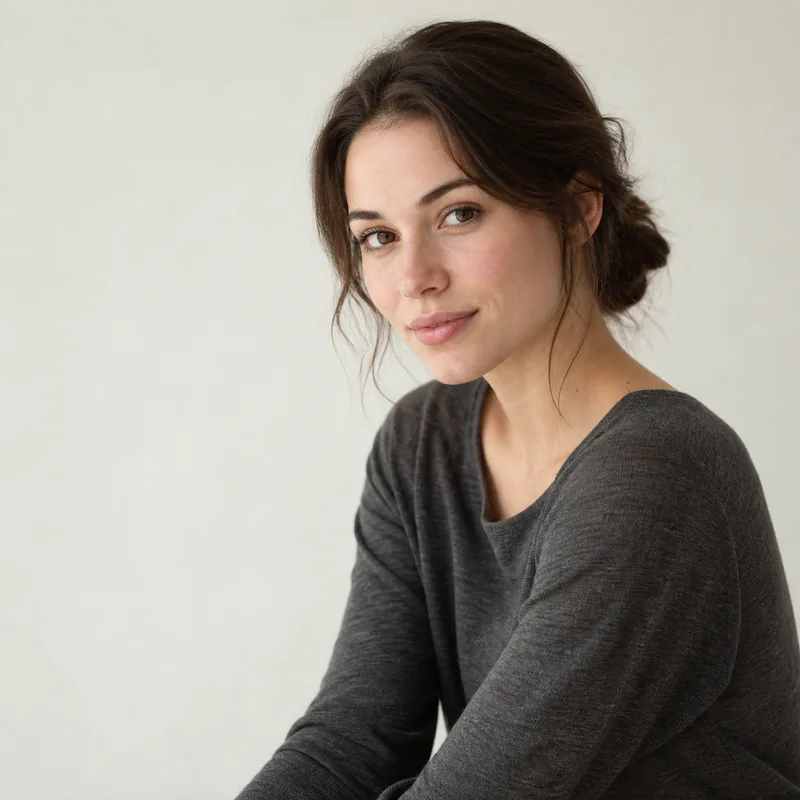
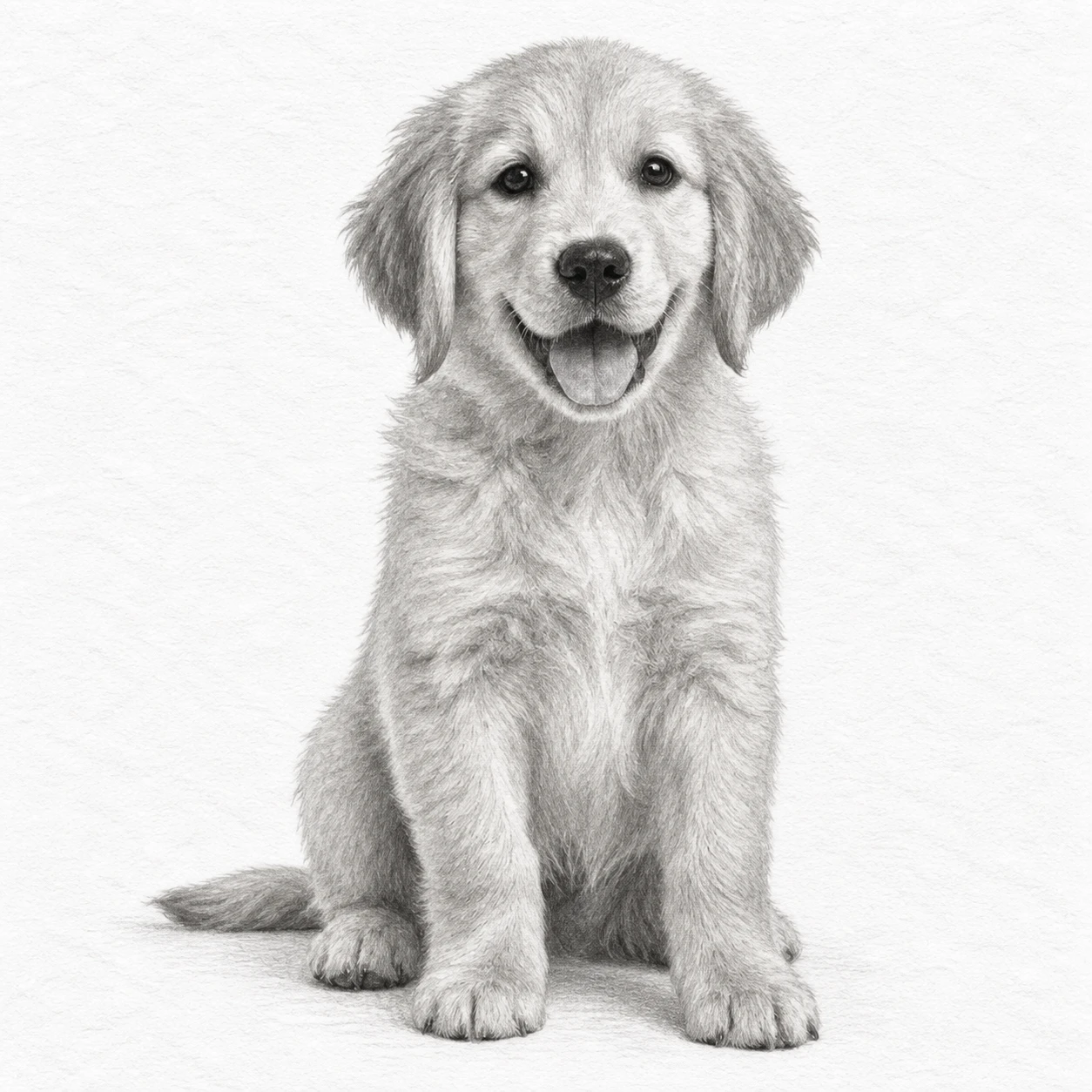
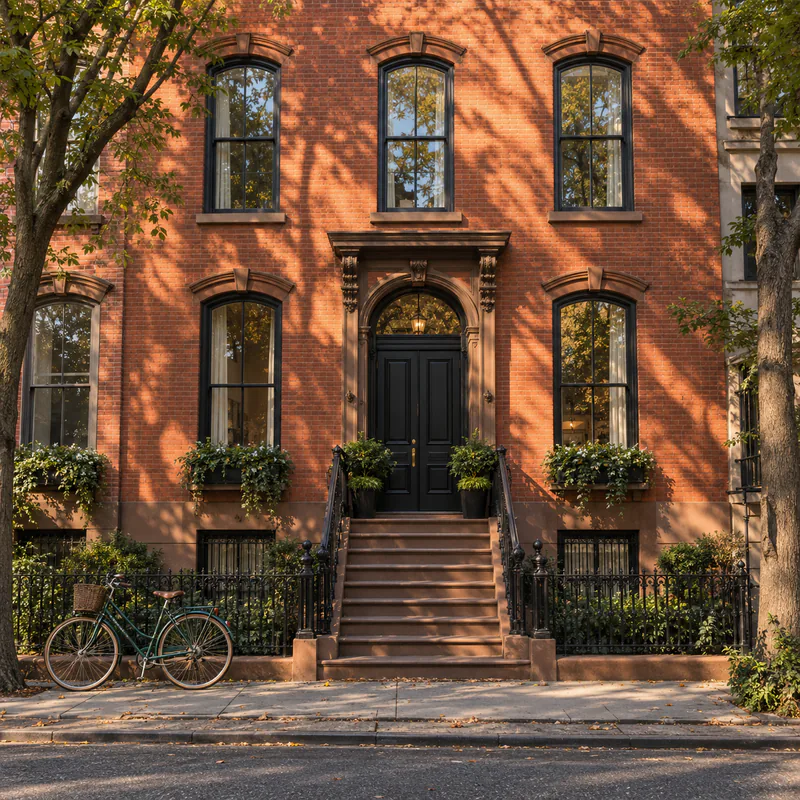
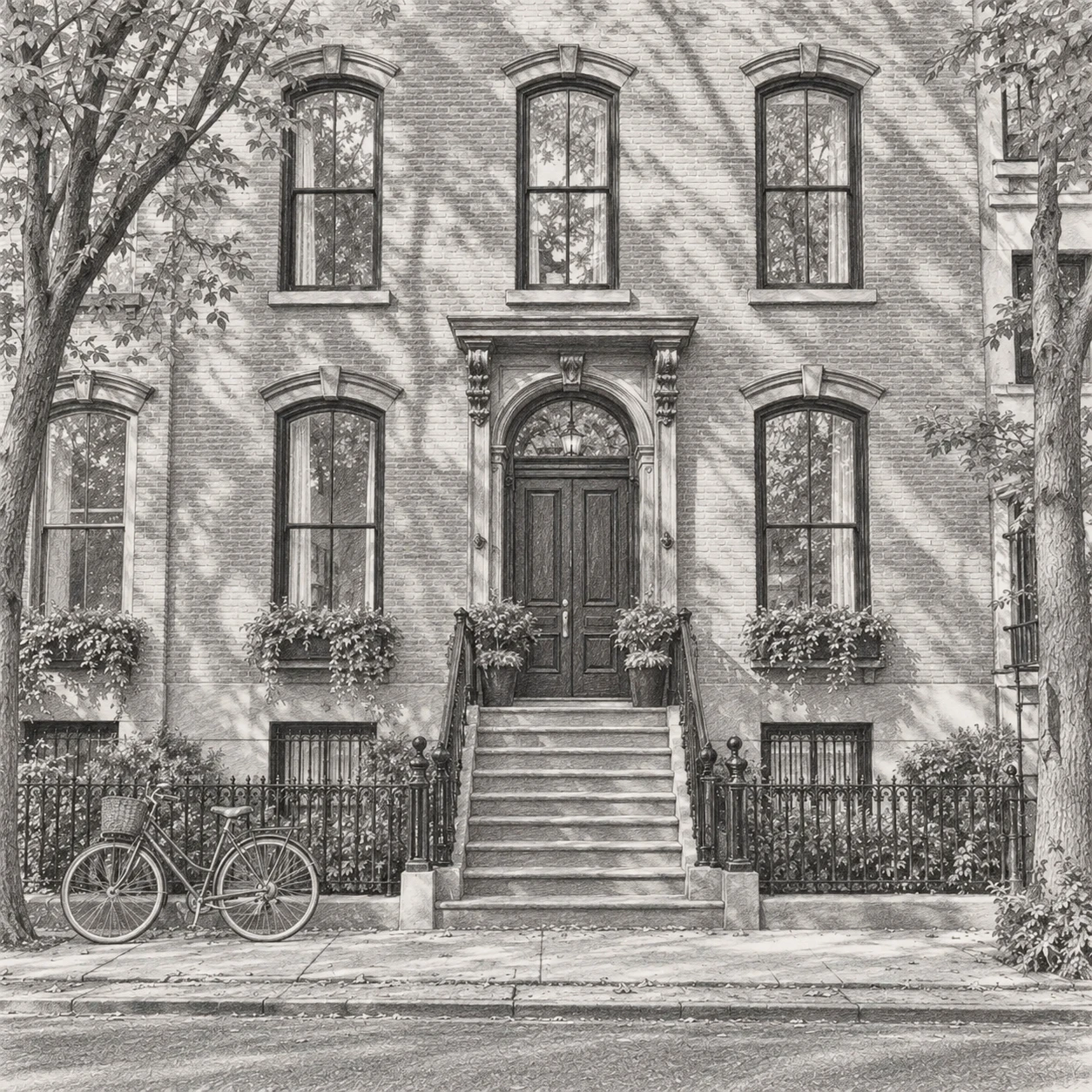
Compare portrait, pet and architecture photos with their Classic Pencil results, generated with this tool. Results vary by photo and style.
Compare the eyes and mouth, then the fine strokes in the hair and sweater. Example generated with this tool.

The seated pose and open mouth remain recognizable, with fur rendered in fine pencil strokes. Example generated with this tool.

Compare the windows and steps, then inspect the thin railings and bicycle details. Example generated with this tool.
Choose a sharp photo with a clear subject and readable shadows. Make any adjustments in another editor before uploading; this page has no cropping or brightness controls.
Our pencil sketch styles emphasize graphite-like marks and tonal shading. Our line drawing tool focuses more on contours and simplified line structure. Choose pencil sketch for a shaded drawing effect, or explore Picture to Line Drawing for more outline-focused artwork.
Upload a photo, choose a pencil preset, sign in with Google, and select Convert to Sketch. When generation finishes, review the image and use the download control to save it.
This page offers Classic Pencil, Soft Shading, Cross-Hatch Pencil, and Loose Sketch. Choose by the balance of shading, visible strokes, and simplification described above.
Yes. Classic Pencil uses exactly the same effective prompt and model settings as Pencil Sketch on the homepage. This page adds other pencil techniques. Separate AI generations can differ even when they use the same configuration.
Our pencil sketch presets focus on graphite marks, tonal shading, and volume. Our line drawing tool focuses more on contours and simplified line structure. Explore Picture to Line Drawing →
Yes. You can upload a color photo; these presets target black-and-white graphite drawings. The uploader accepts JPG, PNG, or WebP images, up to 15 MB.
Signed-in accounts get 3 free generations every day, which reset at 00:00 UTC and do not carry over; you can also try once without an account. After that, each new generation uses 1 credit. Changing the selected preset does not generate an image or spend credits. Technical failures without a usable result return the free generation or credit. View credit plans →
Yes. Use the download control beneath your generated sketch. The saved file can be PNG, JPEG, or WebP, depending on the generation service response. Downloads keep its pixel dimensions without resizing; no fixed output size is guaranteed. Results are raster images, not editable SVG files. Check generated text and fine structures before using the image; there is no guarantee of transparent backgrounds or a particular print size.
Your photo is sent to the image-processing service for generation. The uploaded original and result are stored privately for 24 hours, or 7 days if you have bought a credit pack and 30 days with Pro, counted from when the result is created. You can review and download saved results in your dashboard. Download images you want to keep before they expire. Privacy Policy Your dashboard
Generation redraws the image instead of tracing it. Small text, logos, jewellery, and thin repeating patterns often lose their exact shape, and faces can shift slightly. Check anything that has to stay accurate before you rely on the result.
Open the result at full size and inspect the main subject first, then check hands, hair edges, background objects, and any text against the original photo. If something important looks wrong, prepare a clearer input or try another preset. A new generation uses credits and may still vary.
Picture to Drawing, Picture to Line Drawing, and Photo to Watercolor offer more ways to work with your photos.
Prefer a Photoshop workflow? Follow our photo-to-pencil-sketch guide.
Upload a photo, choose a pencil style, and create your sketch.