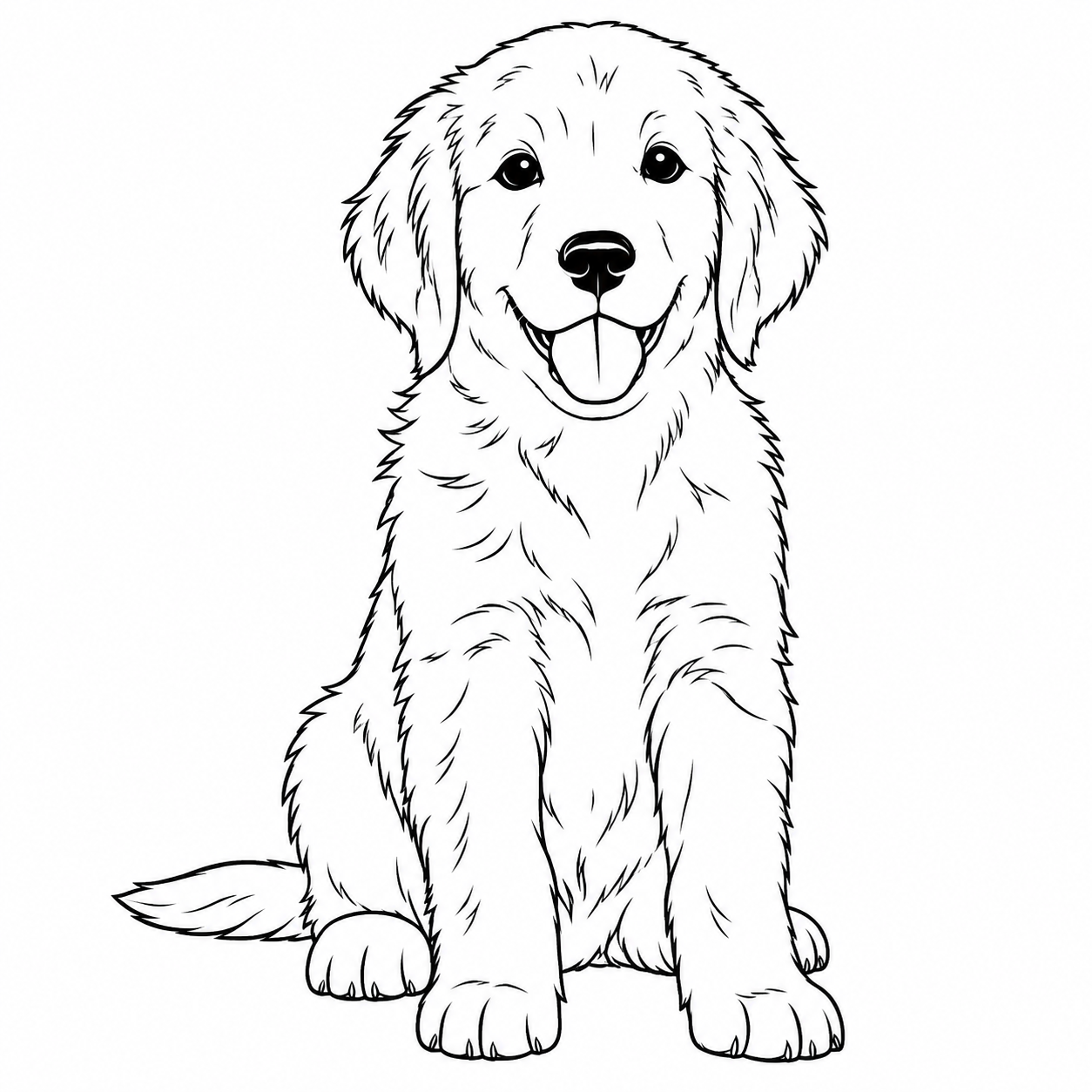
Use our photo to coloring page converter to create black-and-white outlines with space to color. Upload a picture, choose a style, then preview and download your page.
Classic Coloring example
Checking your credit balance…
What Is a Photo to Coloring Page Converter?
A photo to coloring page converter transforms an uploaded picture into outlines that you can color yourself. Instead of keeping the original colors or pencil shading, it emphasizes recognizable shapes and white interior spaces. You choose the colors after downloading, making familiar photos a starting point for your own activity.
This is an AI interpretation, not an exact tracing. Faces, patterns, and small objects can change. Review the result against your original before sharing or printing, especially when a particular feature matters.
Choose a Coloring Page Style
Classic Coloring
Start with recognizable shapes and open areas. Classic Coloring keeps defining features while simplifying surface texture and distracting background details. Use it for portraits, pets, and familiar objects when you want a clear picture without an overly sparse outline.
Simple Shapes
Choose fewer, larger areas to fill. Fine patterns, small folds, and background clutter are reduced so the subject takes priority. A distinct silhouette helps; simplification cannot reliably recover a subject hidden behind other objects.
Detailed Coloring
Keep more interior shapes for a longer coloring project. This option retains selective detail in clothing, fur groups, and visible structures without using shading to fill them. Check that smaller spaces remain usable at your intended print size.
Bold Outlines
Emphasize stronger borders without turning large surfaces black. Bold Outlines keeps moderate detail but gives boundaries more visual weight. Unlike Simple Shapes, its main change is line strength. Check small features to make sure thicker lines have not merged.
How to Turn a Photo into a Coloring Page
01
Upload Your Photo
Select a clear picture from your device. Crop unnecessary surroundings in another editor before uploading if the subject looks small.
02
Choose a Coloring Style
Compare the style examples and select your preferred treatment. Selecting a style does not generate a result or spend credits.
03
Generate and Download
Sign in with Google, generate your page, and review the outlines. Download the result when ready; printing happens on your device.
Photo to Coloring Page Examples
Compare original photos with Classic Coloring results created using this tool. Look at the outlines and the spaces left for your own colors. Results vary by photo and style.
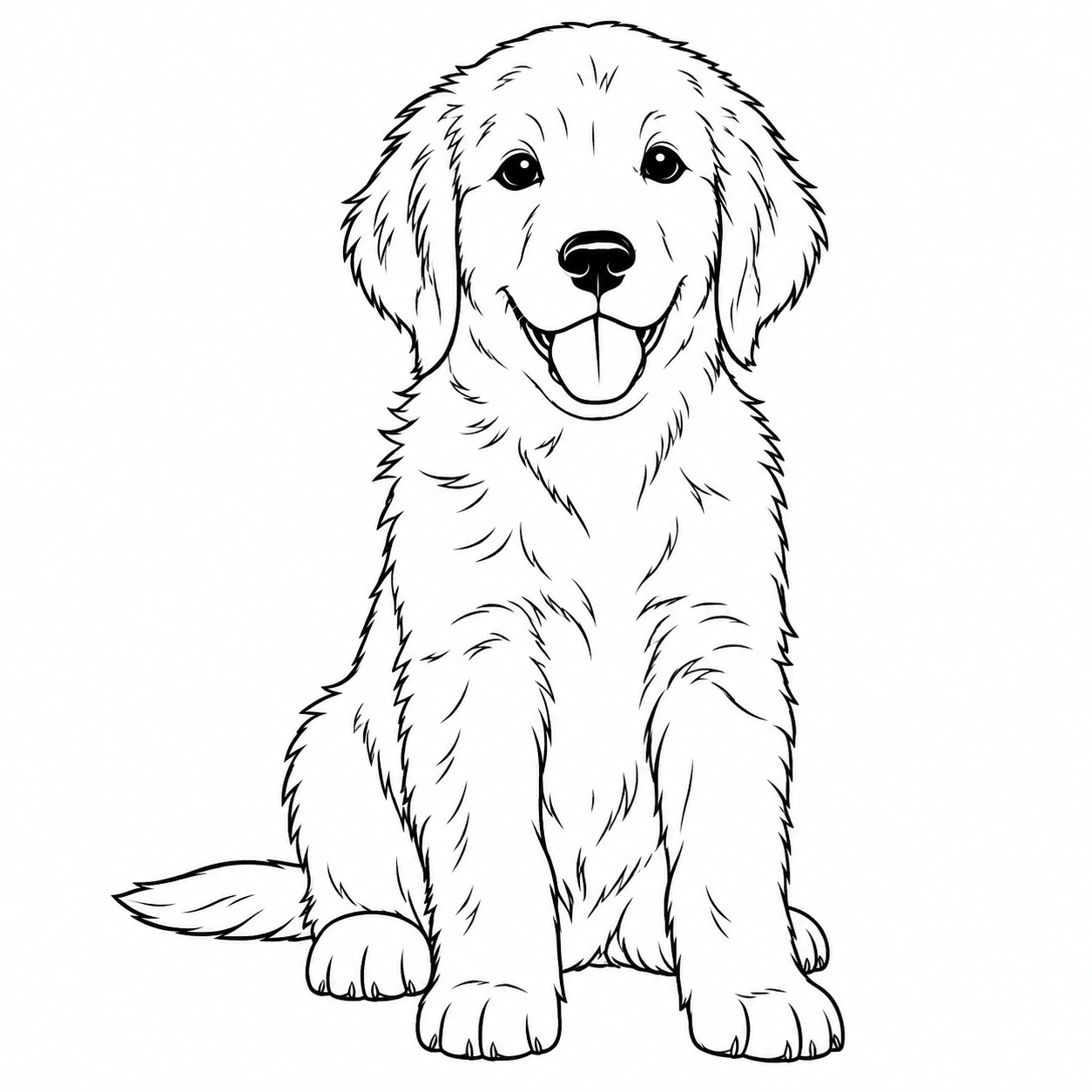
Pet
OriginalClassic Coloring
Check the eyes, ears, and body outline against the original. Fur should read as selected shapes rather than dense shading.
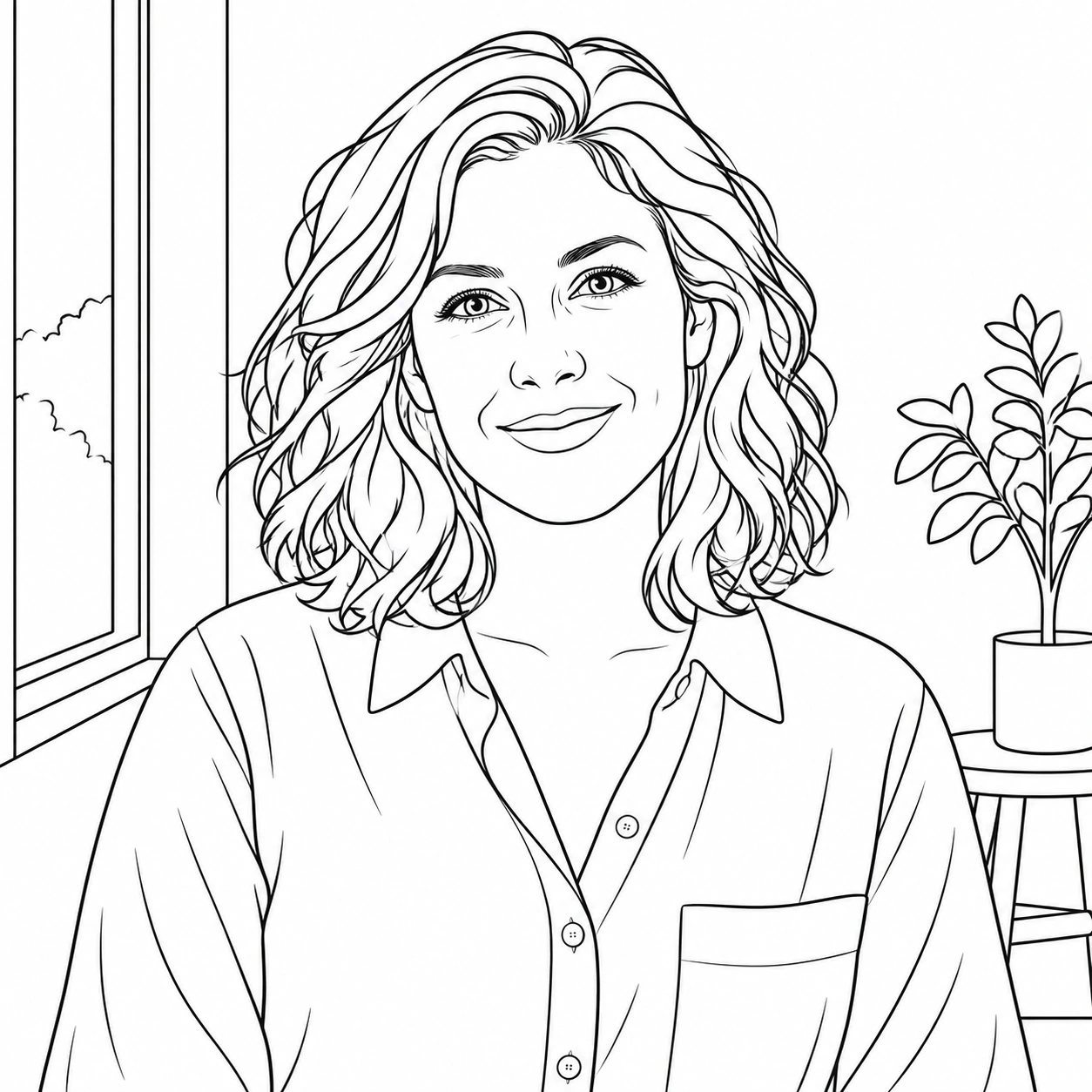
Portrait
OriginalClassic Coloring
Compare the expression and facial features before saving. Hair and clothing should leave room for coloring rather than reproduce every texture.
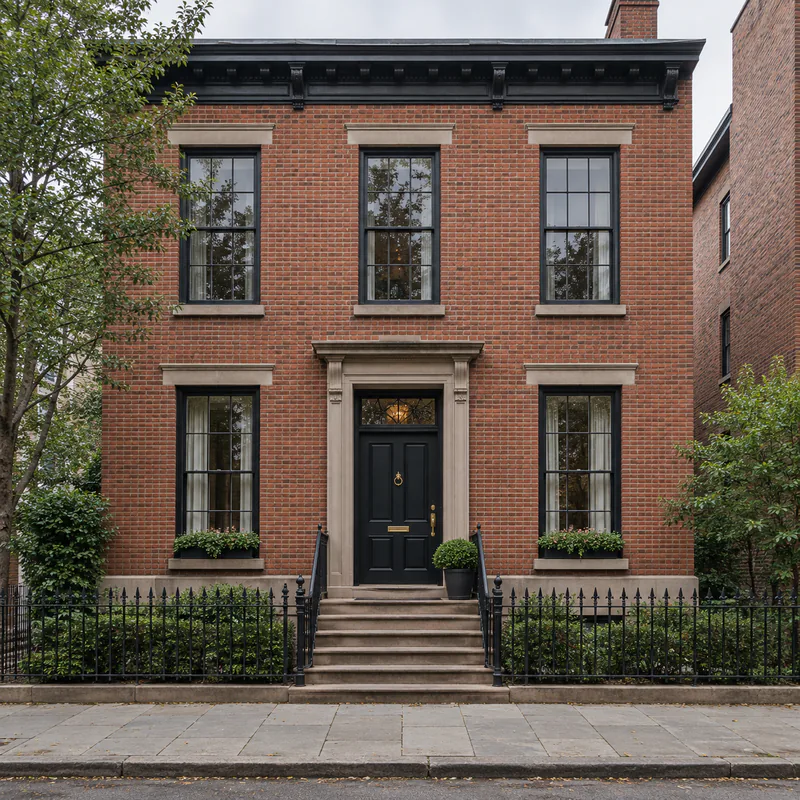
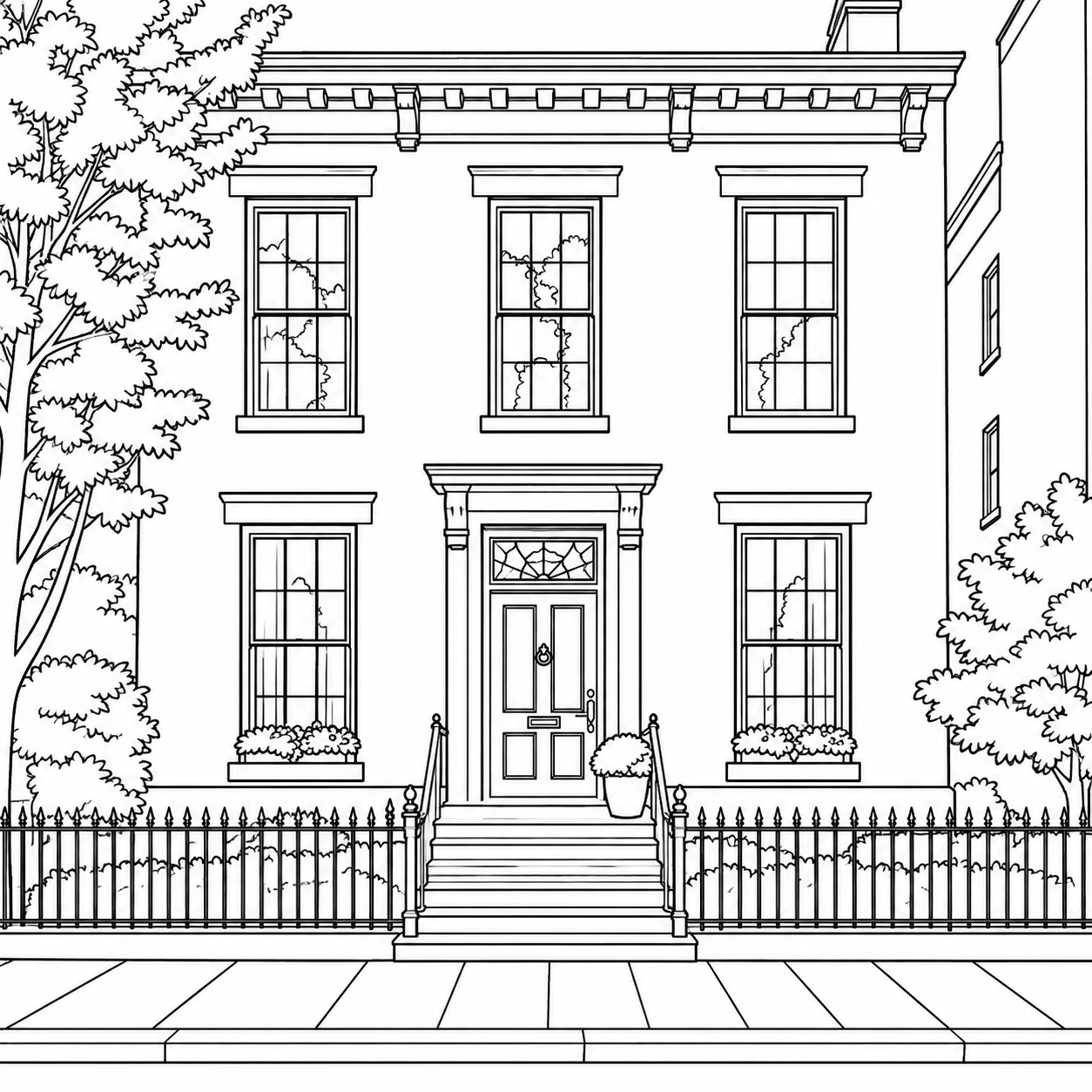
Architecture
OriginalClassic Coloring
Check doorways, windows, and roof edges. Simplified brickwork should leave usable spaces without turning the building into a dense grid.
Which Photos Work Best for Coloring Pages?
Portraits
Choose even lighting and a face that occupies enough of the frame. Avoid strong beauty filters and tiny faces in distant group photos.
Pets
Use a distinct pose with visible eyes and ears. Clear separation from the background helps avoid confusing fur, grass, and furniture.
Houses and Buildings
Select a readable facade or simple perspective. Busy foliage, fences, and signs may compete with the structure you want to color.
Everyday Objects
Start with a familiar object against a quiet background. Separate overlapping items and avoid reflections that hide the object's outer shape.
Coloring Page vs Line Drawing
Both styles use outlines, but their goals differ. A coloring sheet prioritizes open spaces for adding color. A line drawing may keep expressive strokes and finer detail as finished artwork. For an illustration rather than a coloring activity, explore Picture to Line Drawing. For shaded graphite texture, try Photo to Sketch.
What Can You Make with a Coloring Page?
Create a pet coloring sheet, revisit a travel photo, or prepare a personal family activity. Parents and teachers can select suitable images and review the results before sharing them with children. Only upload photos you are allowed to use. Downloaded images do not include permission to reproduce someone else's photos or artwork.
Why Use This Photo to Coloring Page Tool?
Start with Your Own Picture
Use a familiar subject instead of searching through unrelated templates.
Choose the Complexity
Compare treatments that change detail, open spaces, or outline strength.
Review Before Saving
Inspect the generated page alongside your original before downloading.
Keep Your Workflow Simple
Upload, choose, generate, and download without writing an image prompt.
Frequently Asked Questions
How do I turn a photo into a coloring page?
Upload a supported photo, choose a style, and generate. Review recognizable features and open spaces before downloading. Use the image on your device for coloring or printing; there is no coloring brush inside this tool.
Can I try it before buying credits?
New accounts receive 3 complimentary credits after Google sign-in. This is a one-time signup allowance, not a daily refill. Each generation uses 1 credit. See Pricing for subscriptions and one-time credit packs.
Which image formats can I upload?
Upload JPG, PNG, or WebP files up to 15 MB. A clear source helps; increasing a blurry file's size will not restore missing detail.
Can I print my coloring page?
Yes. Download the image, open it on your device, and use your print settings. Choose your paper size, fit the image within printable margins, and inspect a test print. Larger paper does not guarantee sharper lines. This tool does not provide a dedicated PDF export.
What format and size will I download?
The saved result can be PNG, JPEG, or WebP, depending on the generation response. Downloading preserves that result's pixel dimensions without resizing. It does not guarantee the original photo's dimensions, a fixed resolution, or an editable SVG.
Why does the result have too many small details?
Try Simple Shapes or upload a closer crop with a quieter background. Check that the subject is clearly visible. Changing styles requires another generation; it does not edit the result you already made.
Will every outline be perfectly closed?
No. Generated lines can have gaps, merged edges, or altered details. Check areas you plan to color, particularly for digital fill tools. The output is a raster image, not a guaranteed set of closed vector paths.
What happens to my uploaded photo and result?
When you generate, your photo is sent to an image-processing service. After successful generation, we save the original and result for a limited period based on your account. See our Privacy Policy for retention and deletion details.